Make it yours
Build beside the lake or head beyond the campus to find your next project. Choose your blocks, start small, and see where your ideas take you.
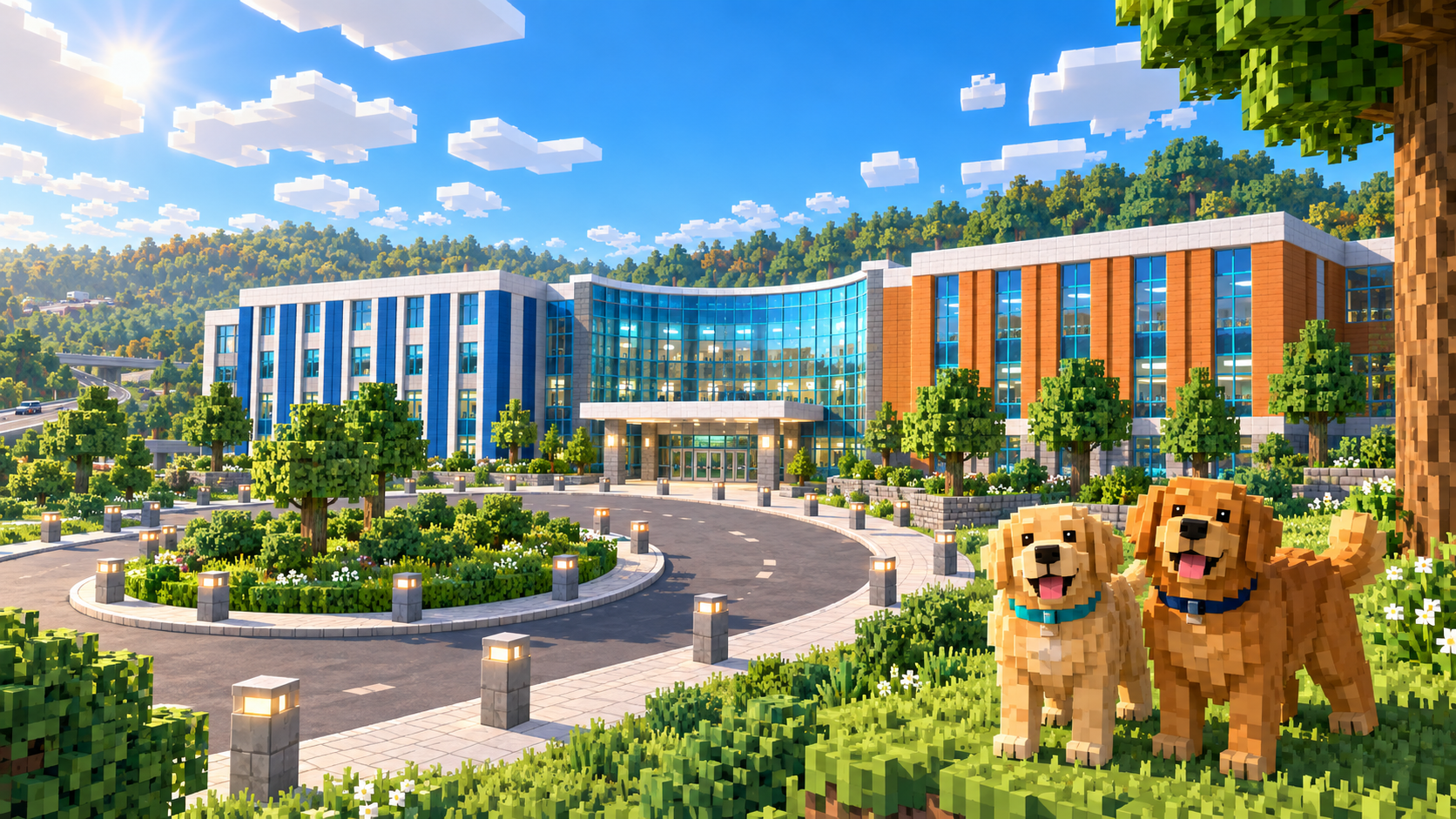
Start with a block. Build something new. Explore a world with a familiar school at its heart.
Play in your browser · Keyboard, mouse, or touch
No account needed. Autosave stays in this browser on this device.
Build beside the lake or head beyond the campus to find your next project. Choose your blocks, start small, and see where your ideas take you.
Walk through the glass entrance and find BELIEVE. Follow the drop-off circle to the playground, basketball court, and outdoor classroom.
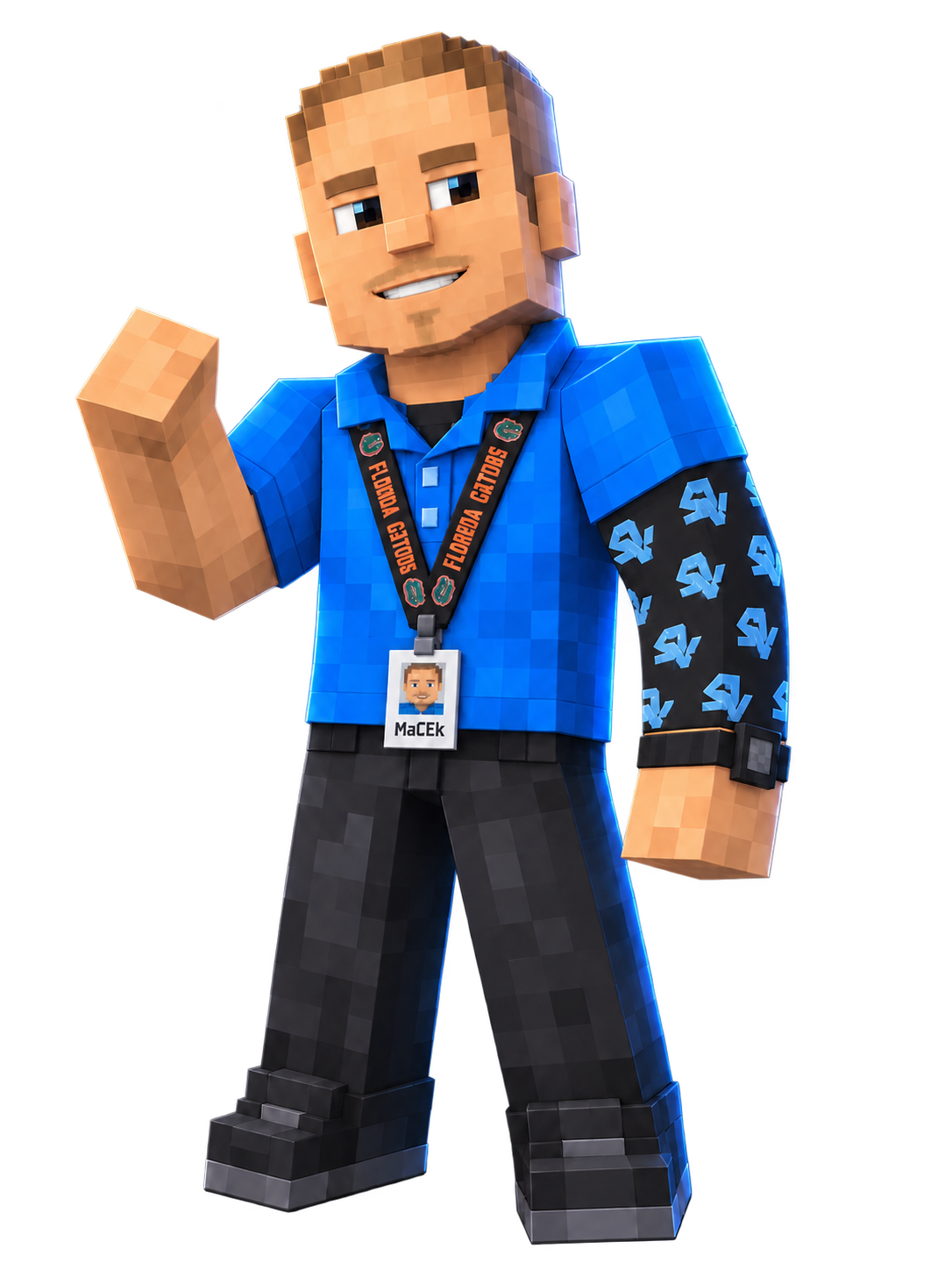
Meet Sleeves in his number 28 jersey on the front lawn. Officer Shields and Mr. Eiler stay near the entrance; Mr. B carries his laptop through the halls. Ms. Micco patrols campus, KaY follows Sir D, and Ellie and Percy follow the campus Mr. Macek. Sir D and Mr. Macek meet near the entrance around sunset.
W Forward · S Back · A Left · D Right.
Arrow keys work too: ↑ Forward · ↓ Back · ← Left · → Right.
Move your mouse, or click and drag, to look.
Space to jump or swim up. Shift moves faster on foot or in flight. F toggles flight in Creative.
While flying: Space up, V down. Let go to hover.
Left click to break. Right click to place.
Use 1–9, [ and ], scroll, or the block bar to choose a material.
C changes the camera view. Esc releases the mouse and pauses.
Use the joystick to move. Drag the screen to look.
Tap the block bar to choose your material.
Use the on-screen buttons to jump, place, or break.
In Creative, FLY toggles flight, JUMP rises, and DOWN descends.
Open Menu whenever you want to pause.
Embrace the Challenge is peaceful; falls and deep water can hurt.
Save keeps your progress in this browser on this device. The game also saves as you play. Download Save puts a copy of your world in a file you can keep. Your world stays here. Look in Downloads for the file ending in .json.
Load World opens a MYnecraft save file you choose. It asks before replacing this browser's current world. The two worlds do not join together. To keep both, use Download Save first and check that the file downloaded. Press Cancel at the warning if you are not ready.
You can move that file to another device and open it in MYnecraft. It cannot open in Minecraft. There is no account, automatic device sync, or multiplayer world. The school and primary links share one save in the same browser. Clearing browser data can erase it. Reset World starts fresh after asking, so keep a downloaded copy first.